Elementor Plugin Installation
Elementor Plugin Installation
- Navigate to your Wordpress installation's admin dashboard.
- Click on the
Pluginsside menu item. - Click on the
Add New Pluginbutton at the top-left of the Plugins page. - In the search box on the top-right of the page, enter the keyword "Elementor".
- You should see "Elementor Website Builder" as the first result on the page. Click on the
Install Nowbutton on the search result.
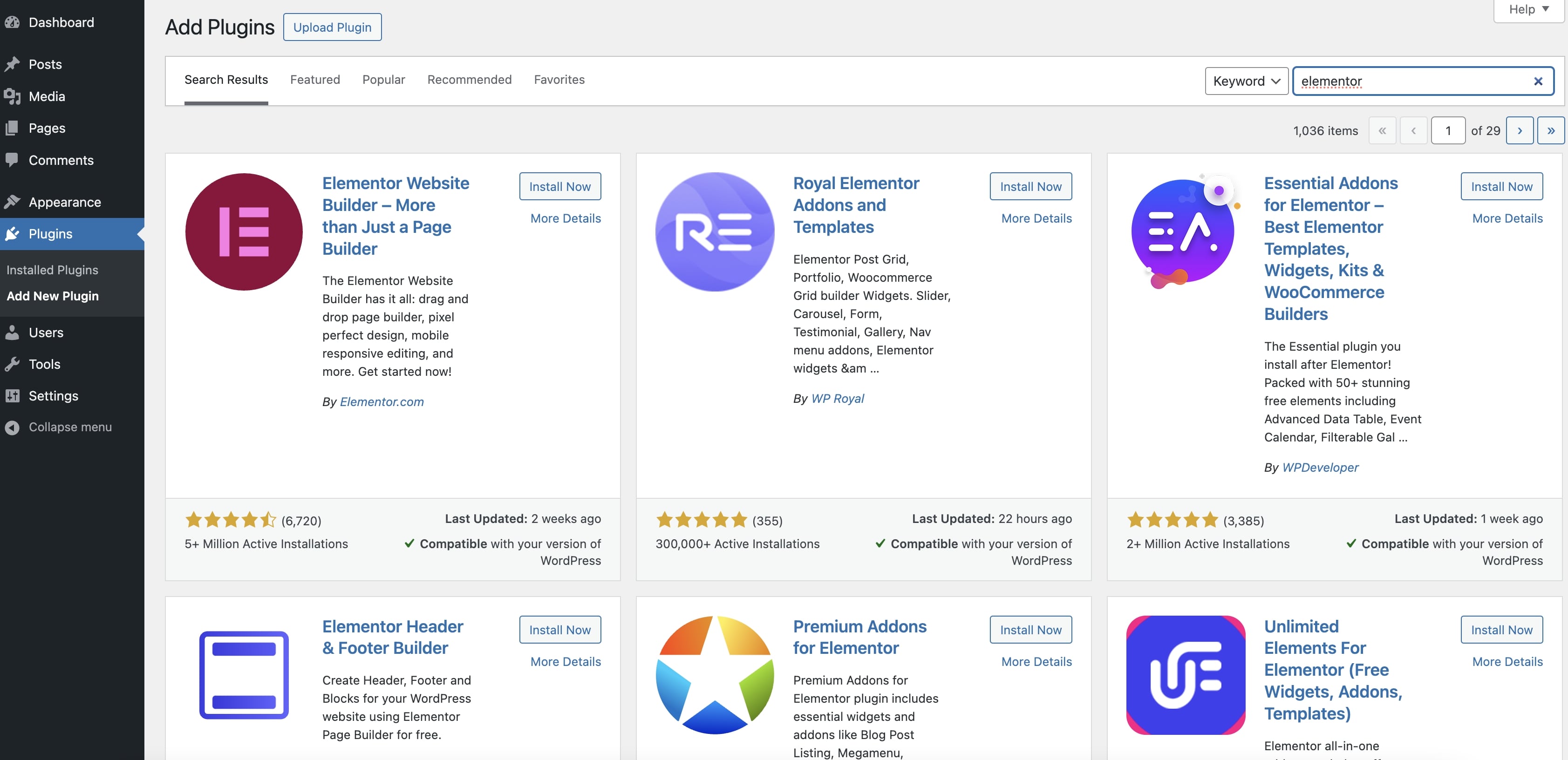
Once installed, click on the Activate button.
You may be re-routed to an Elementor set up page where you'll be asked to create your account or connect an existing account.
If you were NOT re-routed skip the next section.
If you were re-routed to the Elementor set up page
If you are re-routed to an Elementor setup page, create the Elementor account if you don't have one yet, or simply click on the "Connect your account" link below the "Create my account" button if you have an existing account.
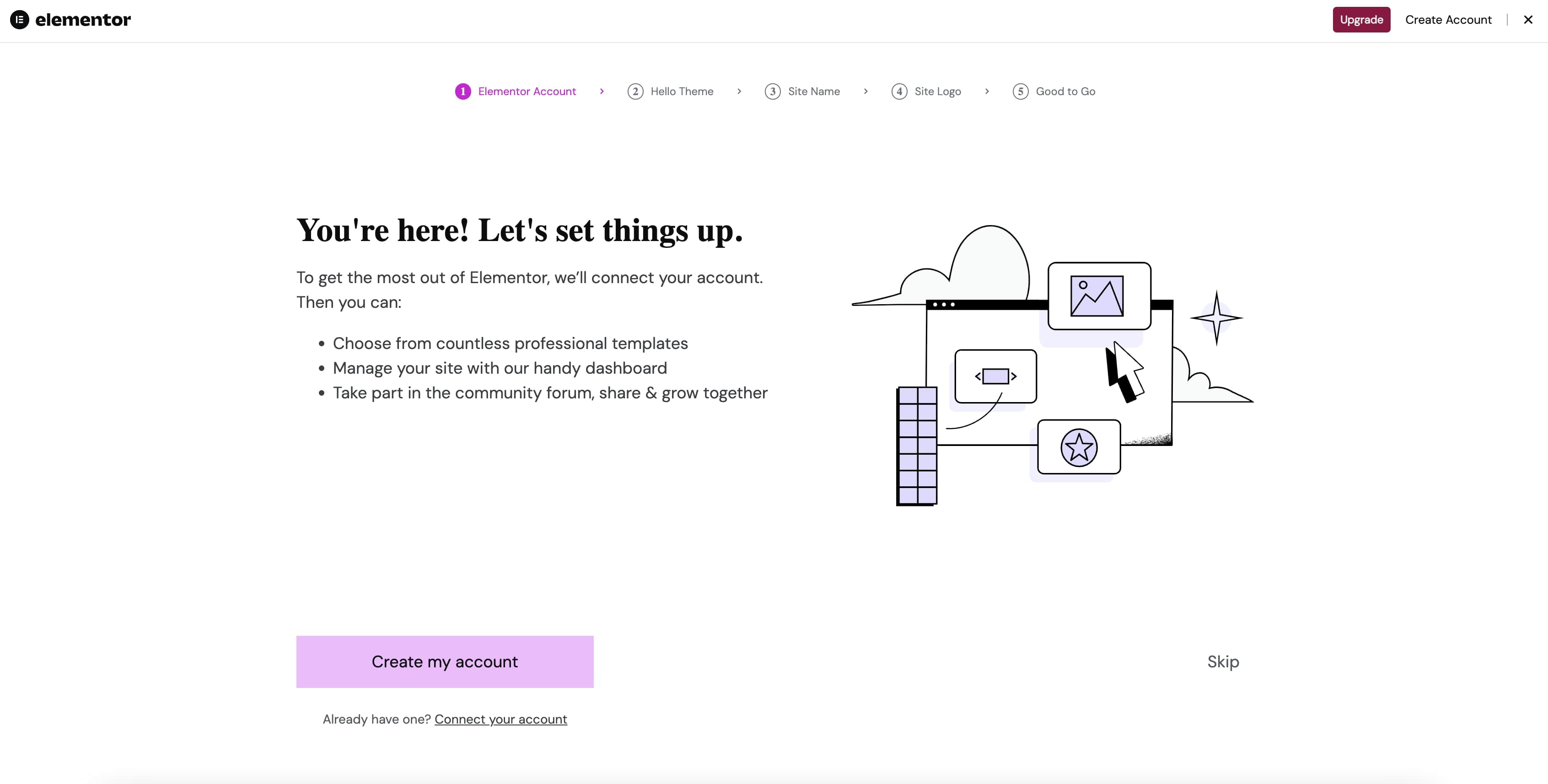
- Once signed in you will be asked to connect your site with the Elementor account. Click
Connectto continue. - After connecting you will see a screen suggesting you continue with Elementor's "Hello" Theme. Since we will be installing the Dawn theme you can click the
Skipbutton here. - You may be asked additional questions, you can skip these if you'd like.
If you were NOT re-routed to the Elementor set up page
If you were not re-routed to the Elementor setup page after activating:
- Navigate to your Wordpress admin dashboard.
- Click on
Elementor>Home. - Click on
Connect Accountat the top-right of the page. - Sign in using your Elementor.com account or create a new account.
- Click Click
Connectto continue. - Your Wordpress site should now be connected to your Elementor account.
Elementor Pro Plugin Installation
If you haven't yet purchased your Elementor Pro plugin, you will need to purchase it to proceed with the Pro plugin installation instructions.
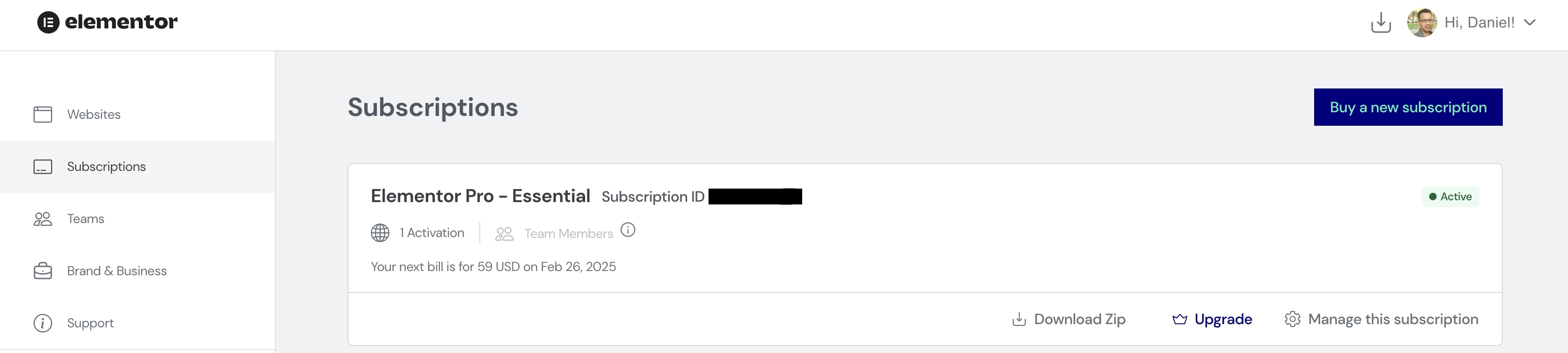
- Once you've installed the Elementor Free plugin, login to your elementor account at elementor.com.
- Navigate to the
Subscriptionssection of your account and click onDownload Zip.
- Go back to your Wordpress admin dashboard.
- Navigate to the plugins page and click on the
Add New Pluginbutton. - Click on the
Upload Pluginbutton. - Choose the zip file you downloaded from the Elementor.com site (💡 do not unzip this file).
- Click on the
Install Nowbutton. - The screen will display the plugin installation progress. Once "Plugin installed successfully." is shown, click on the
Activate Pluginbutton. - You will be re-routed back to the plugins list page. You should see two Elementor plugins activated (Elementor and Elementor Pro).
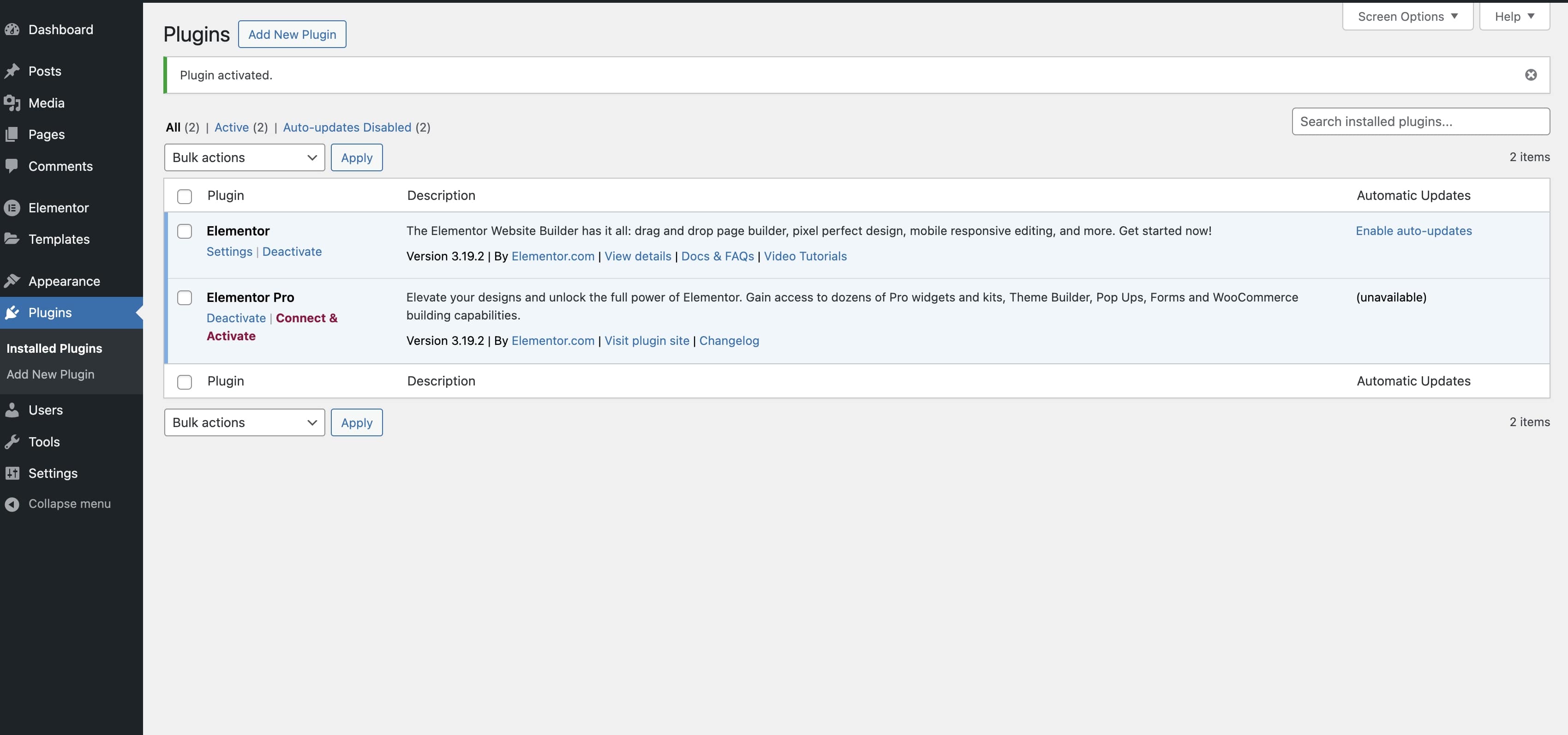
Make sure to use an Elementor Pro plugin version appropriate for the version of the Elementor standard plugin to avoid unexpected behavior with your Elementor installation. A good rule of thumb is to install the latest versions of both plugins.
Connect & Activate Elementor Pro
- In the Plugins list page, click on the
Connect & Activatelink in the Elementor Pro plugin. - You will be routed to the Elementor website.
- Follow the license activation steps to activate your Elementor Pro plugin.
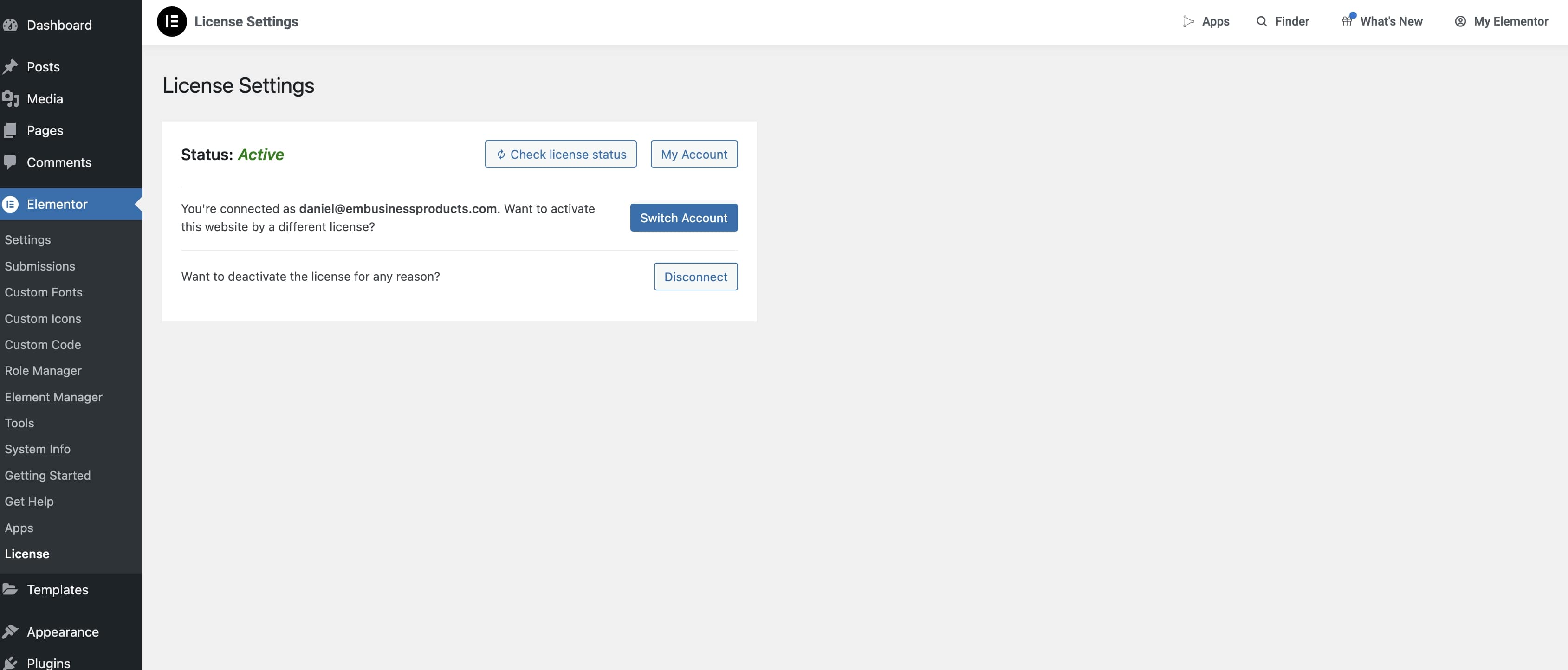
- Once complete you should be routed back to your Wordpress site, and should see the "Active" status indicated in Elementor's License Settings page.
If you plan to use a staging website and do not want it to count towards your Elementor Pro plugin activation count, consider using one of their approved staging subdomains.