Creating a New Page Template
Creating a blank page template
info
It's not recommended you start with an empty page template as our pages are built with a specific container structure to match our design. We recommend creating a new page based off an existing page or based off our "Empty Page" template. See instructions below.
- Navigate to the Wordpress admin dashboard.
- Navigate to
Templates>Saved Templates. - Click on
Add New Template.
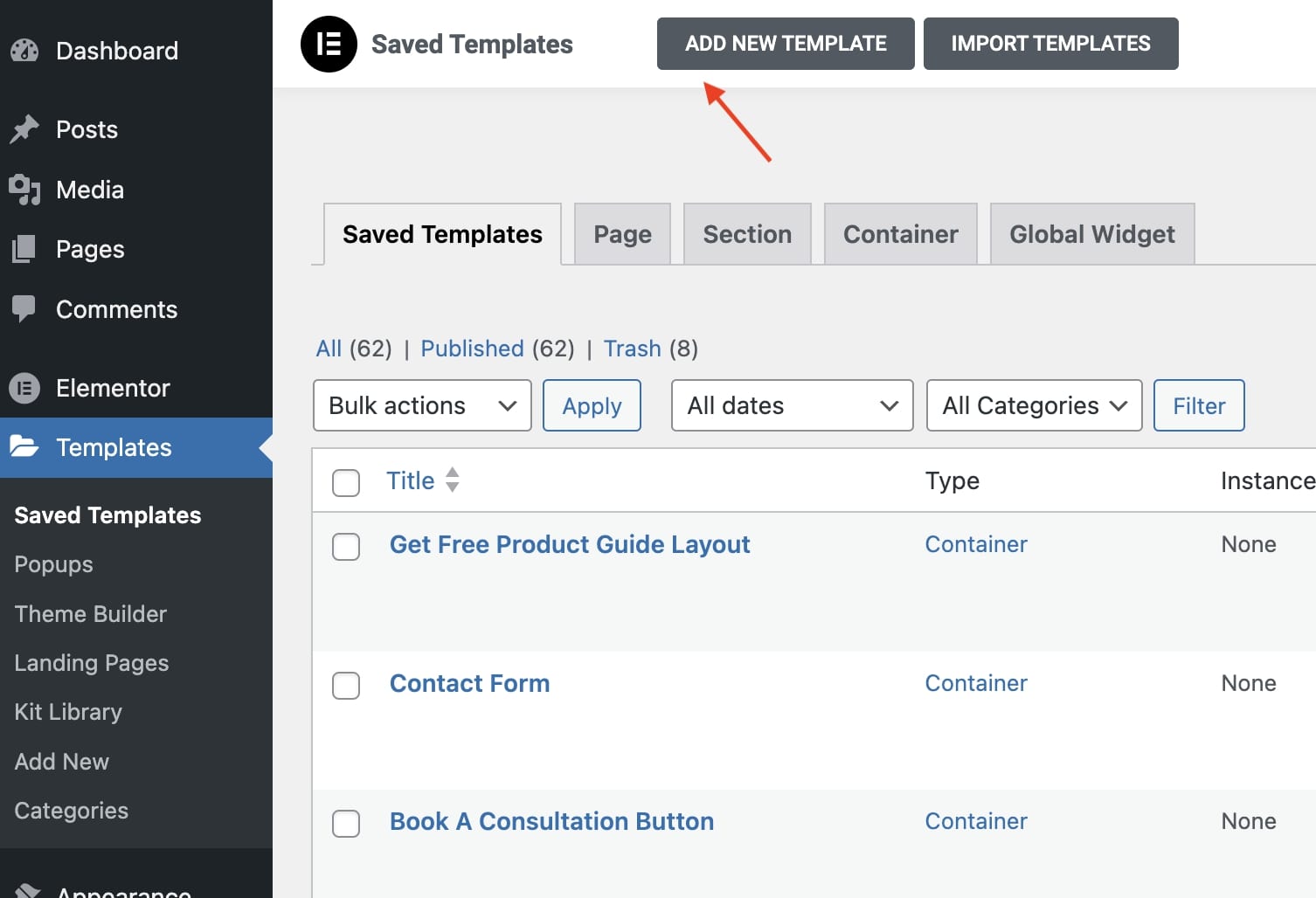
- Choose
Pageas the template type. - Give the template a name and click on the
Create Templatebutton.
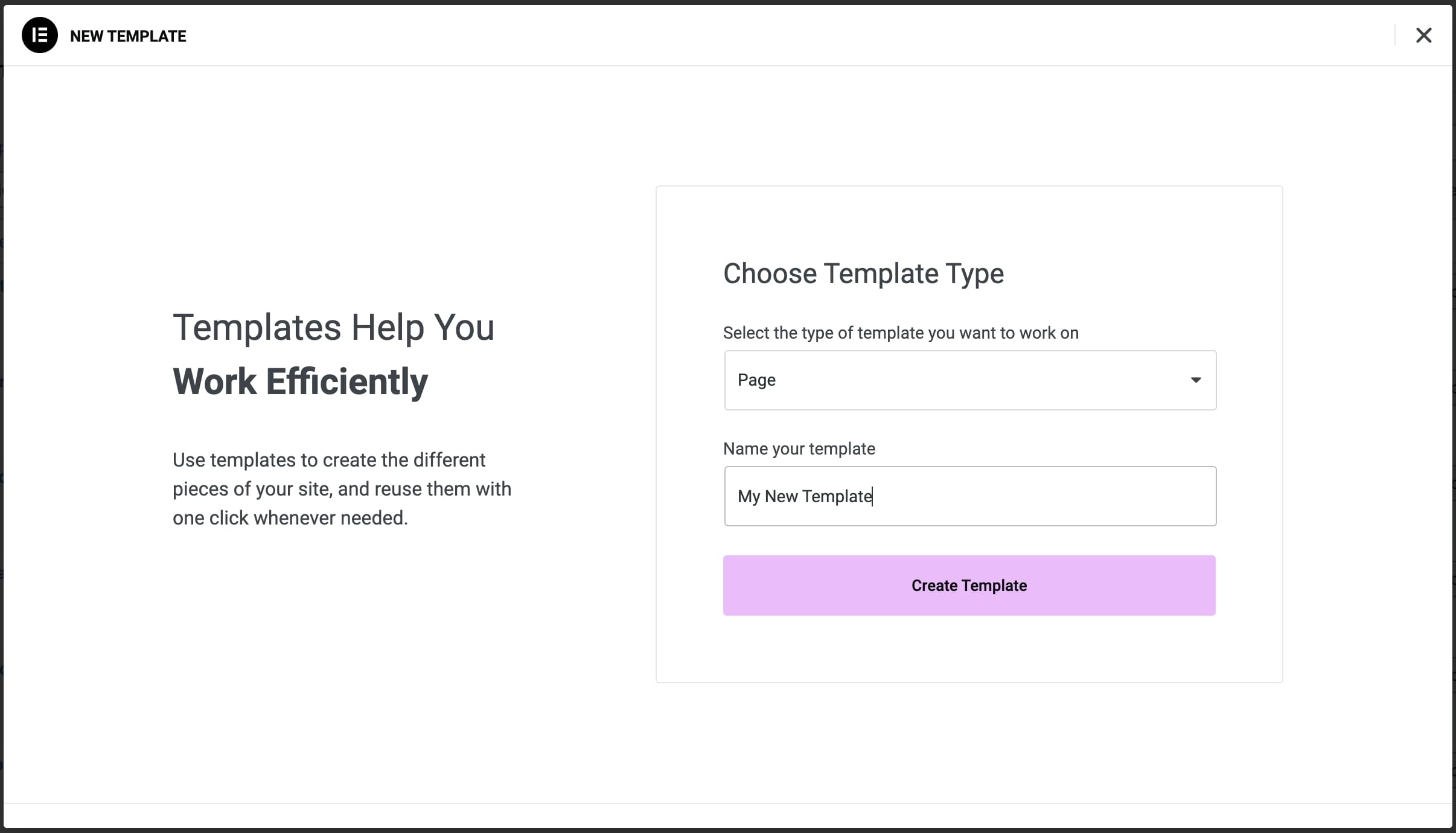
You now have an empty page template to build from.
Creating a new page based on an existing page
- With a new empty page created (see section above) open the template selection modal and click on the
My Templatestab.
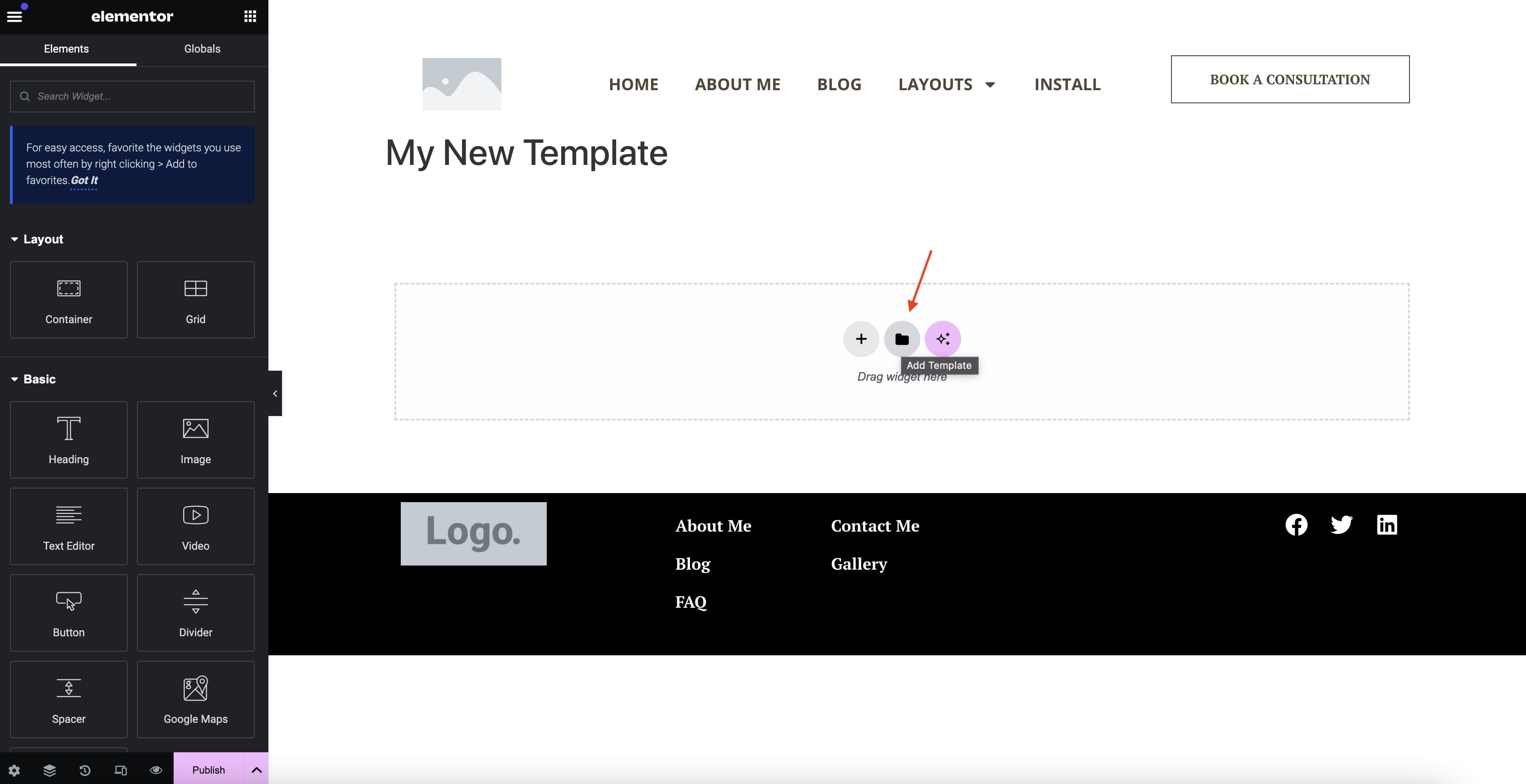
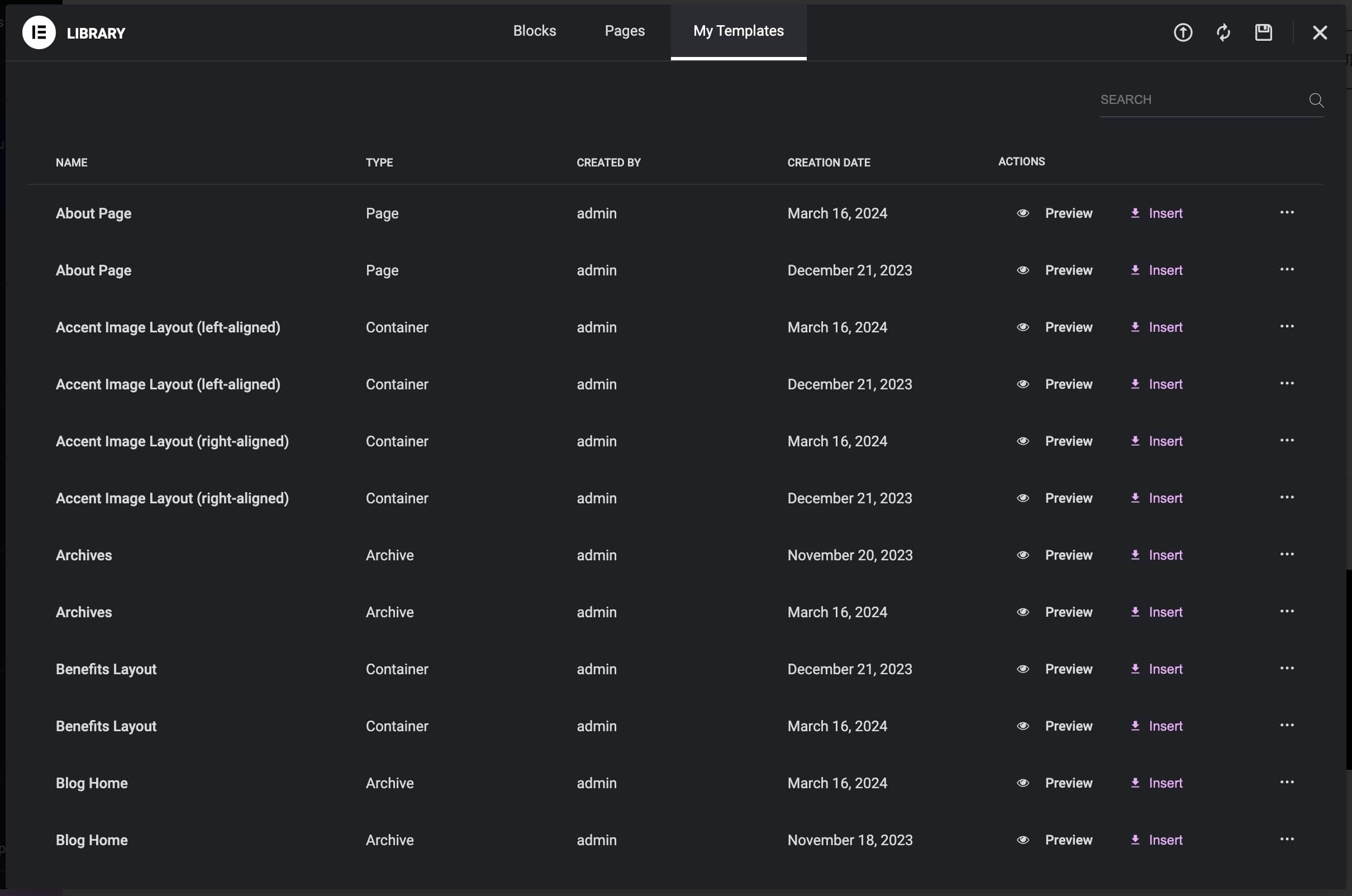
- Find the template you'd like to base your new page template from and click
Insert. - Edit your new template to fit your needs.
Creating a new blank page based on our "Empty Page" template
You can create a new blank page using our "Empty Page" template. This template will create a page that has the container patterns we have established for building a page with the theme.
- With a new empty page created (see section above) open the template selection modal and click on the
My Templatestab.
In the template selection modal, click on the My Templates tab.
- Find the "Empty Page" template in the template list.
- Click on
Insertnext to the "Empty Page" template. - The "Empty Page" template will load on your page template.
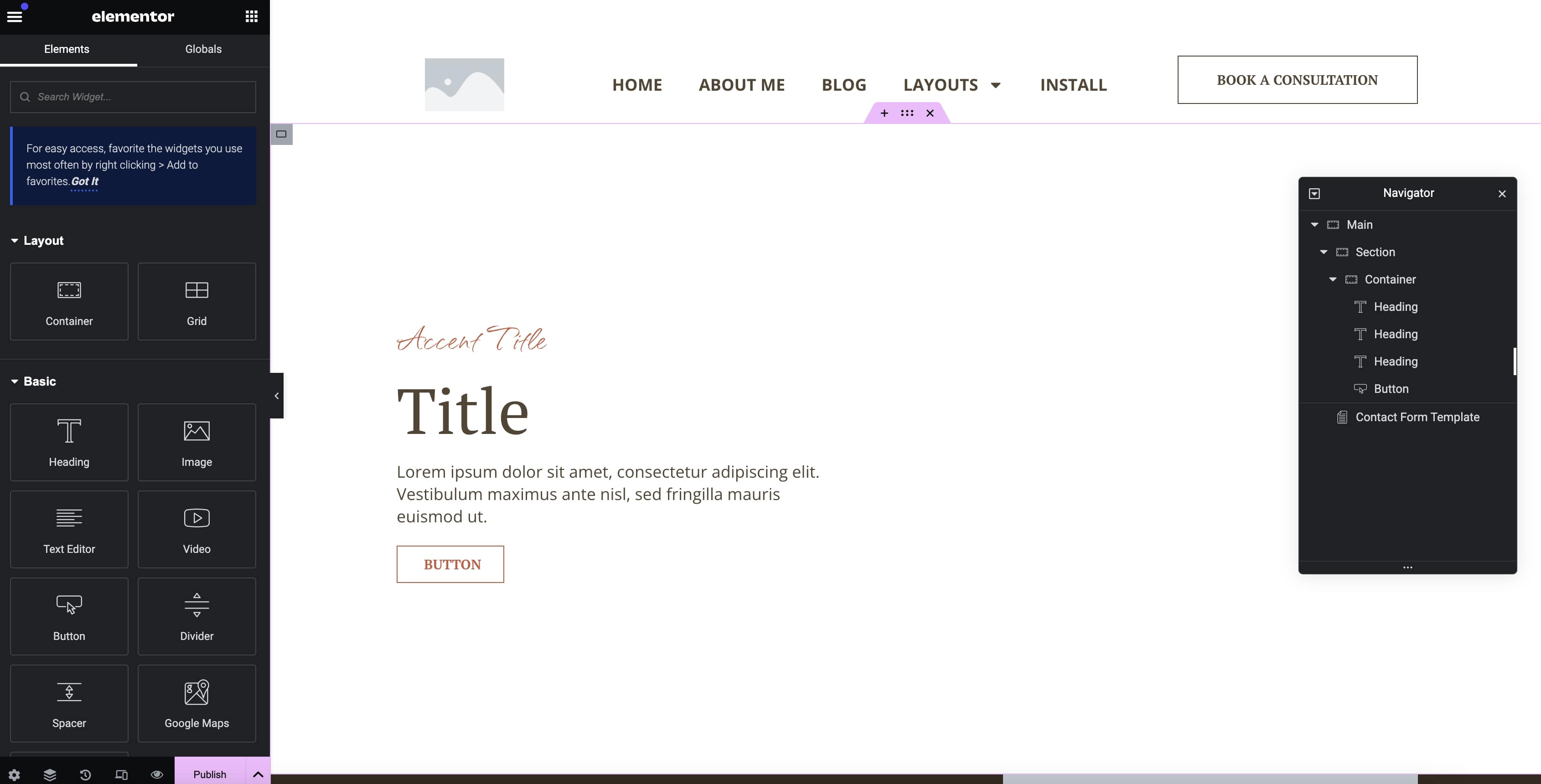
Edit your new template to fit your needs.