How to Optimize Font Loading
By default, Elementor will load Google fonts for use on your site from the Google servers. However, this means you will load fonts you are not using and do not need. This adds a loading burden on your site which may slow your site down.
Elementor can be updated to disable loading all of the Google fonts, and only load the fonts you'll need for this theme.
To get the full advantage of this loading optimization, it is recommended that your site's assets are served through a Content Delivery Network (CDN) as the CDN will cache the fonts for your users for a fast loading experience.
Download the fonts you need
Follow the steps below:
Navigate to Google Fonts and download the fonts associated with our theme.
You will need to download the following fonts:
- Open Sans Regular, Open Sans Semi Bold, Open Sans Bold
- PT Serif Regular, PT Serif Bold
- Qwitcher Grypen Regular
You may require other fonts or font weights if you are making customizations. Download any additional fonts/weights you may need for your site as well.
Add the fonts as custom fonts in Elementor
Once you have the fonts downloaded navigate to Elementor > Custom Fonts from your Wordpress admin dashboard.
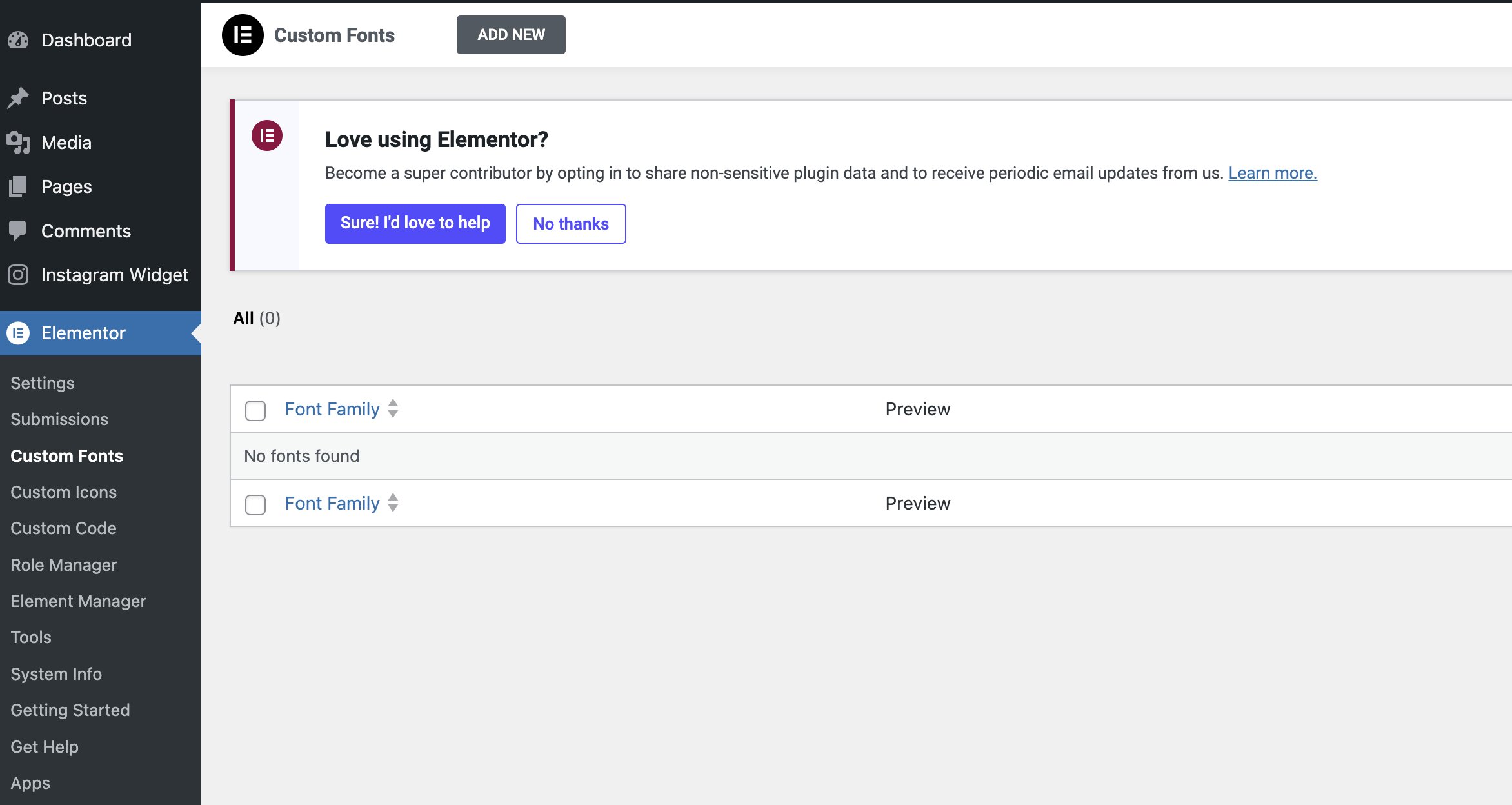
Add a new font and add the necessary font weight variations. Be sure to set the correct font weight for each uploaded font.
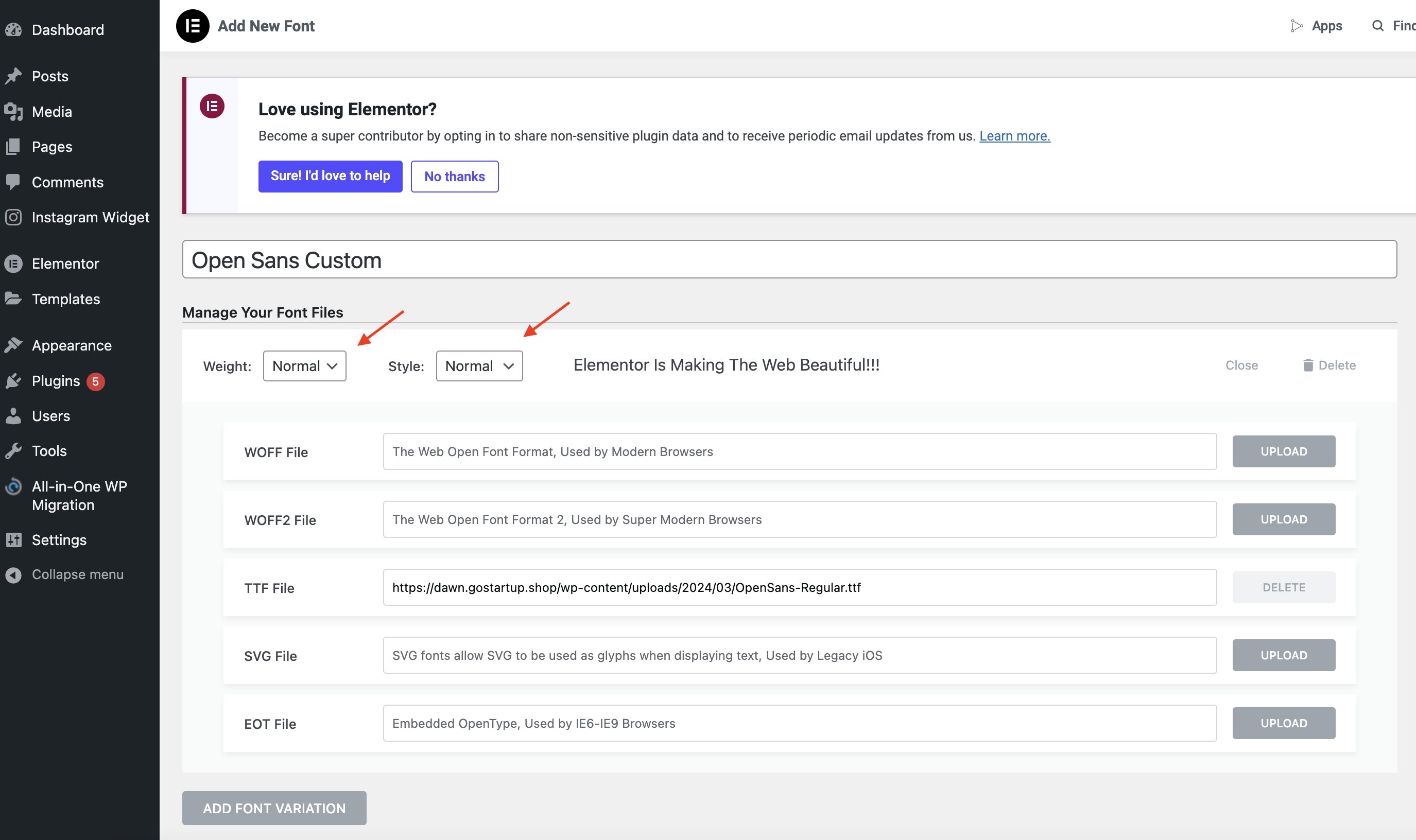
For the fonts in this theme use the following settings:
| Font | Weight | Style |
|---|---|---|
| Open Sans Regular | Normal | Normal |
| Open Sans Semi Bold | 600 | Normal |
| Open Sans Bold | 700 | Normal |
| PT Serif Regular | Normal | Normal |
| PT Serif Bold | 700 | Normal |
| Qwitcher Grypen Regular | Normal | Normal |
Update the theme to use the custom fonts
Once your custom fonts are configured, navigate to your Global Fonts settings in Elementor and update each font reference to use your custom font name.
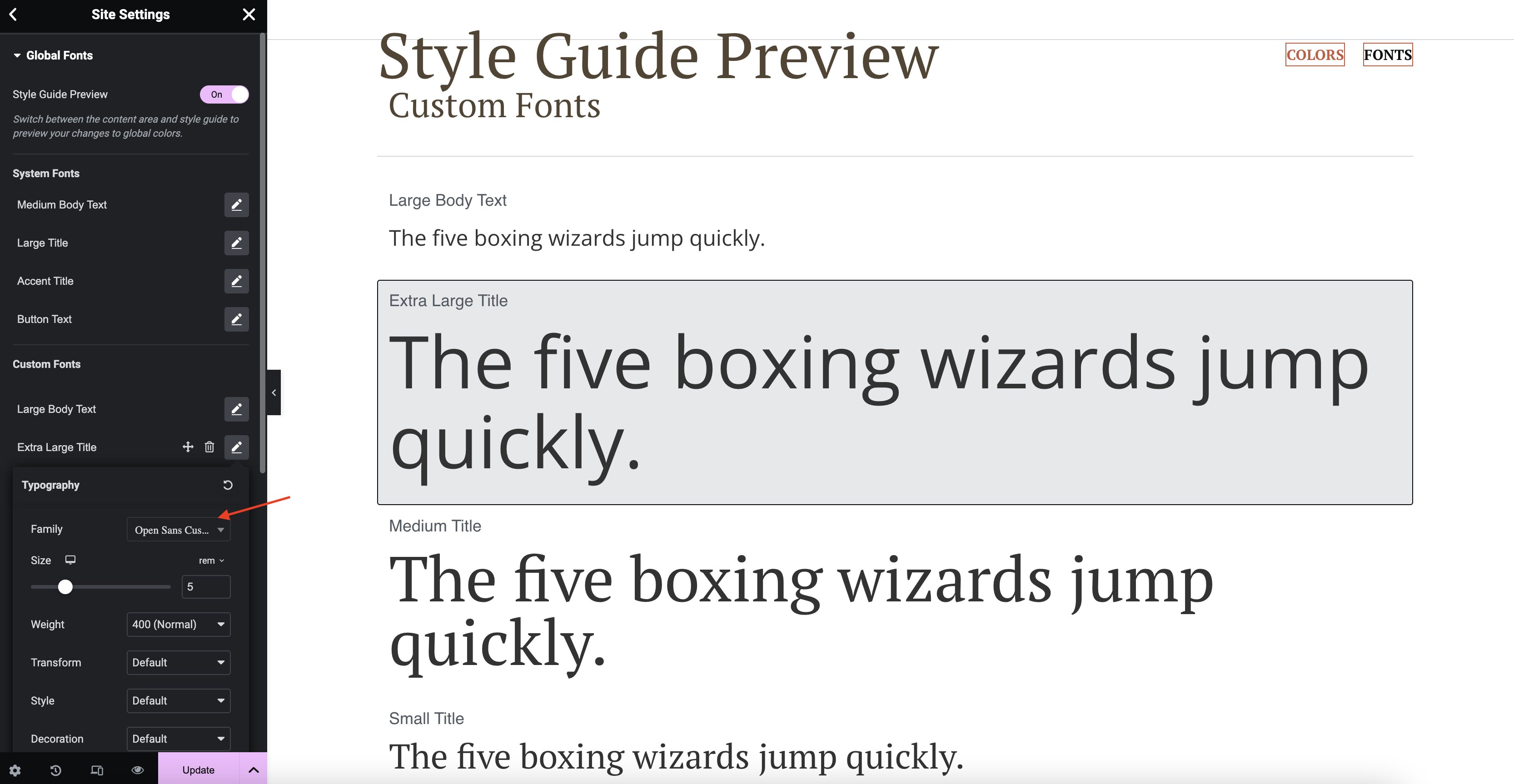
Disable Google Font loading
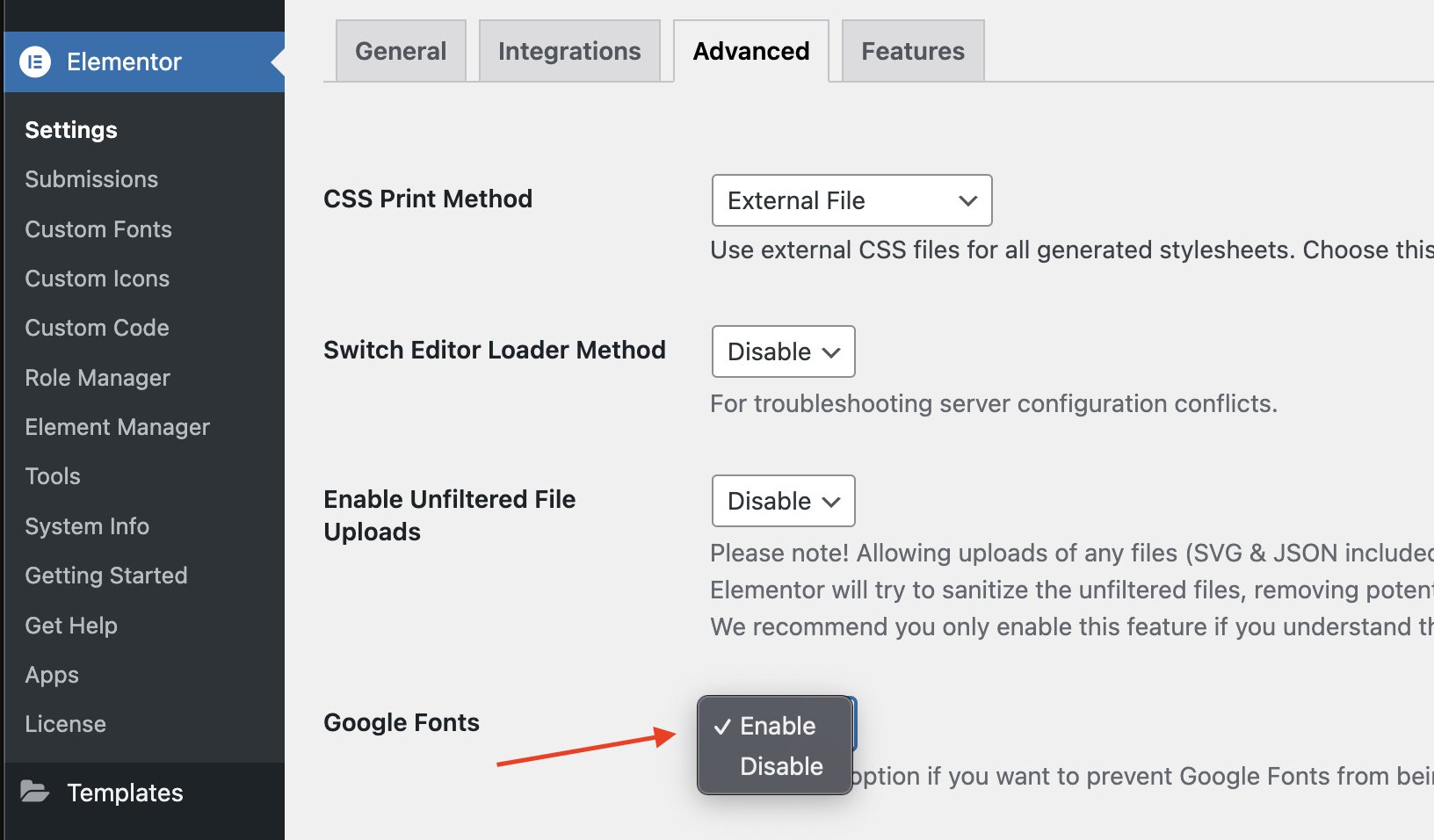
Once you've updated all your global fonts to map to your custom fonts, you can now disable the Google Font loading by navigating to the Elementor > Settings > Advanced tab and selecting "disable". Your custom fonts will continue to load since you've manually configured them as custom fonts, however the Google Font font library will no longer load unused fonts into your website.
Any font overrides you've done in individial templates will also need to be updated to use your custom font. Review your site for any fonts not rendering properly and resolve as needed.